Connect your WhatsApp to Zvani AI — the Coexistence setup.
This is the Coexistence setup. You keep using WhatsApp on your phone for business as usual — and Zvani replies on your behalf, on the same number. Takes a few minutes.
Want a number that only Zvani manages instead? That’s a separate, simpler setup — guide coming soon.
Before you start — two must-haves.
- Your number is on the WhatsApp Business app — not the regular WhatsApp
- You can sign in at business.facebook.com (a Meta Business login)
The steps.
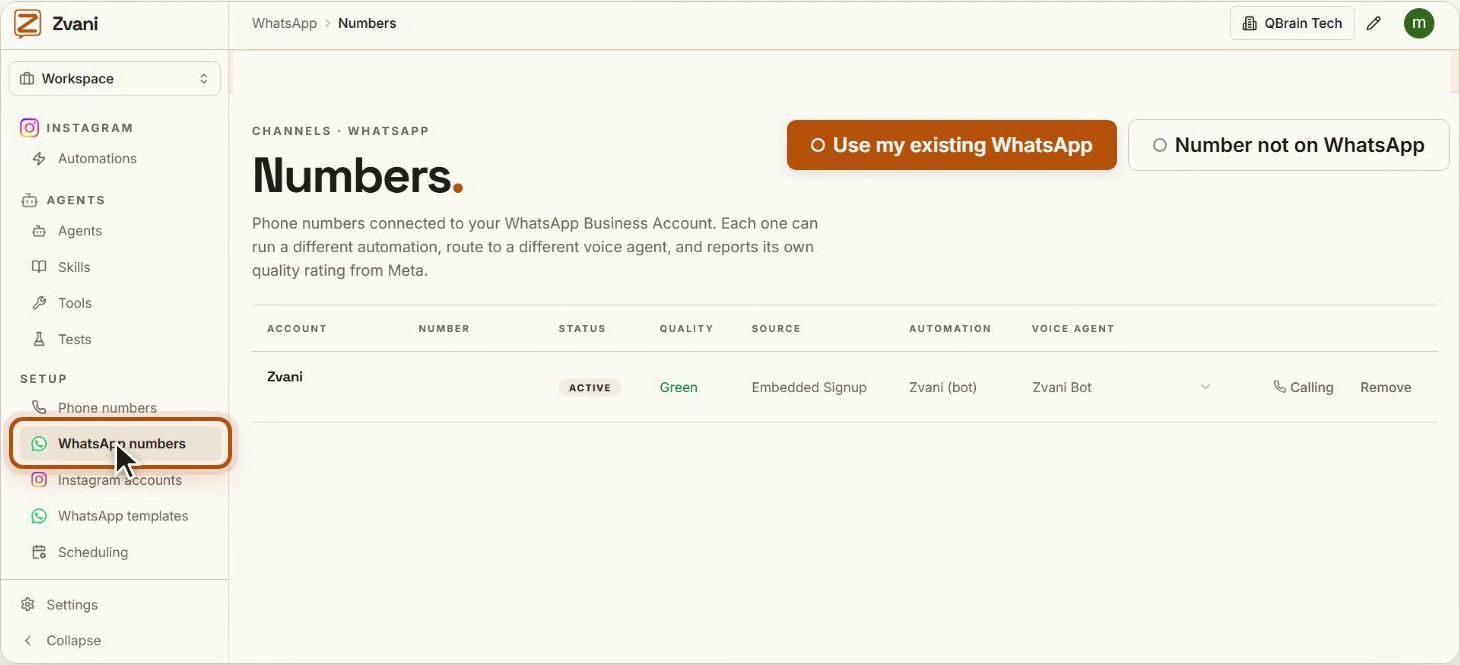
Open WhatsApp numbers
In ZvaniGo to Setup → WhatsApp numbers and click Use my existing WhatsApp.
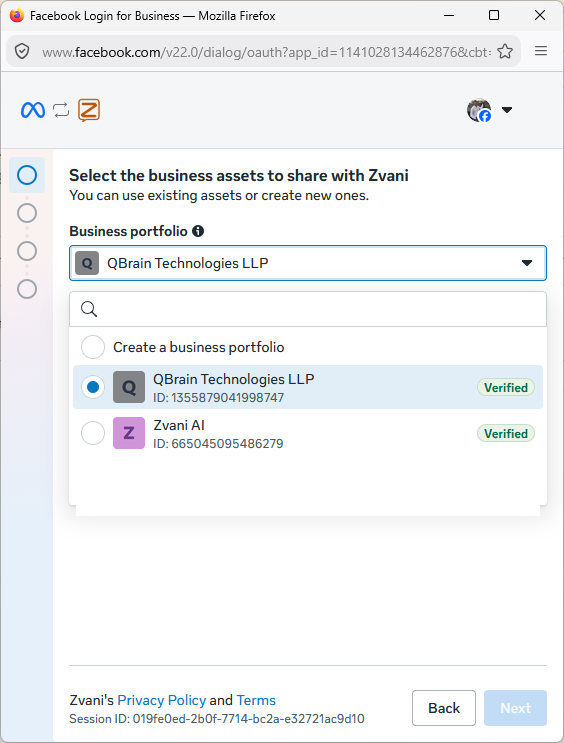
Choose your business portfolio
Meta popupPick your Meta business from the list — or create one if you're new.
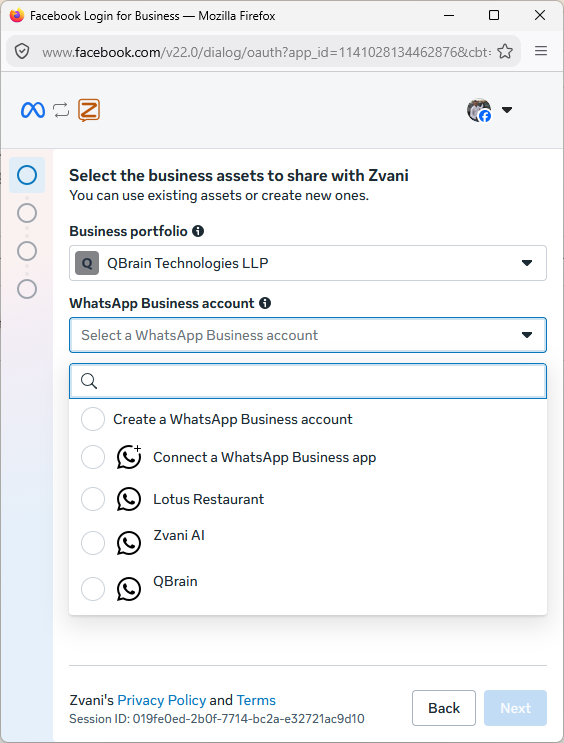
Connect a WhatsApp Business app
Meta popupIn the WhatsApp Business account dropdown, choose Connect a WhatsApp Business app.
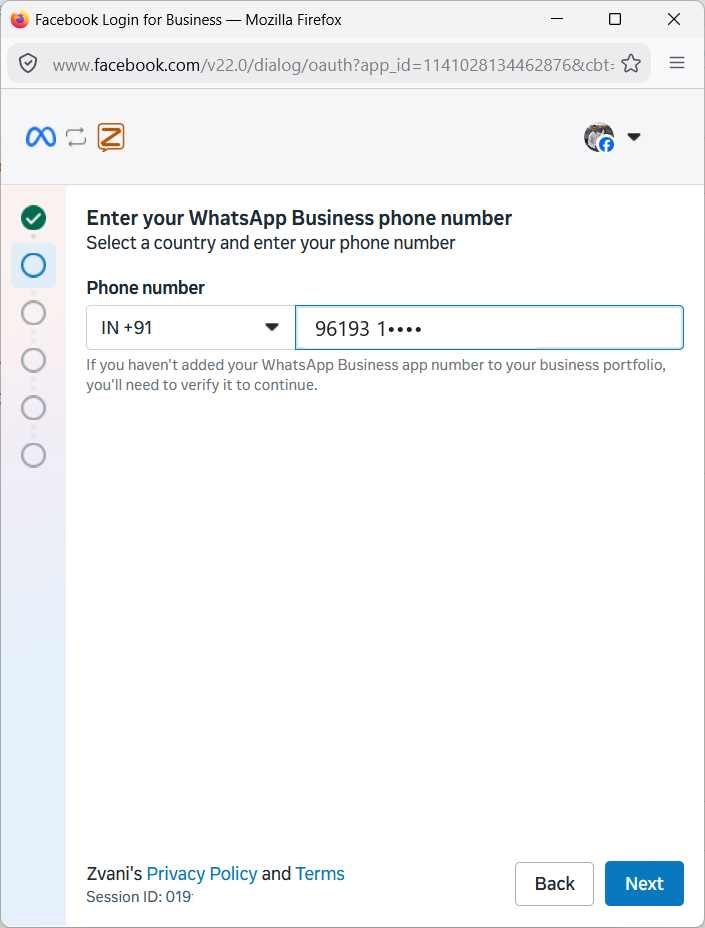
Instead of this screen, Meta sometimes asks for your number first— that’s fine, the steps are the same in a slightly different order.
Enter your WhatsApp number
Meta popupType your number with the country code and click Next.
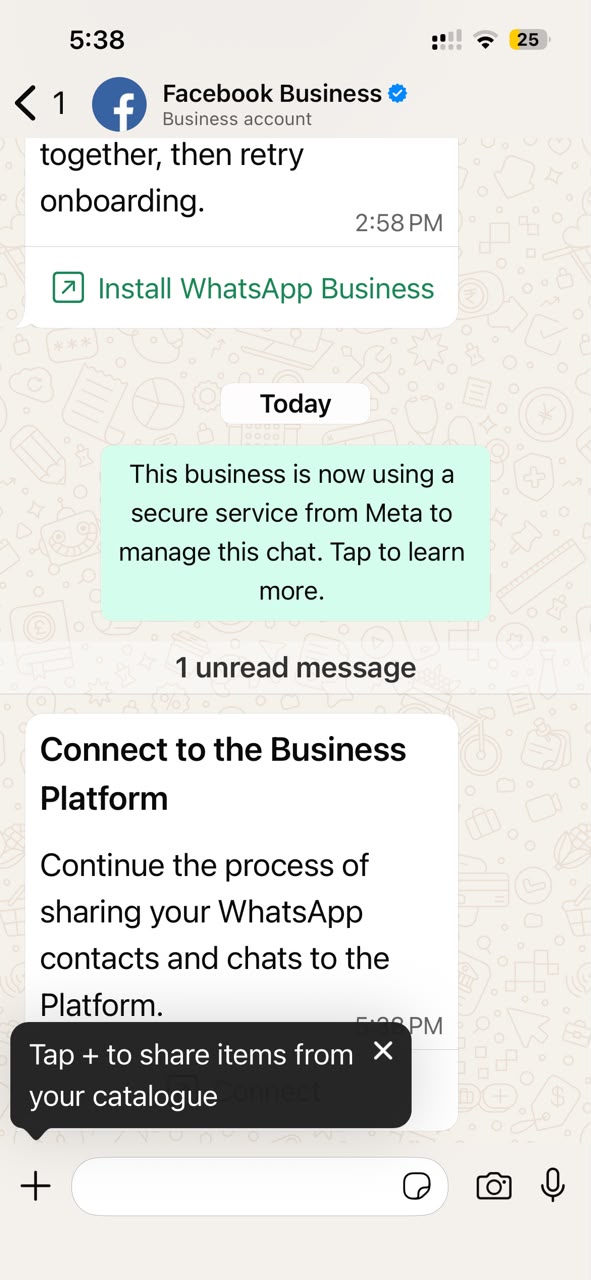
Tap Connect on your phone
On your phoneIn WhatsApp Business, open the message from Facebook Business and tap Connect — this switches on the scanner.
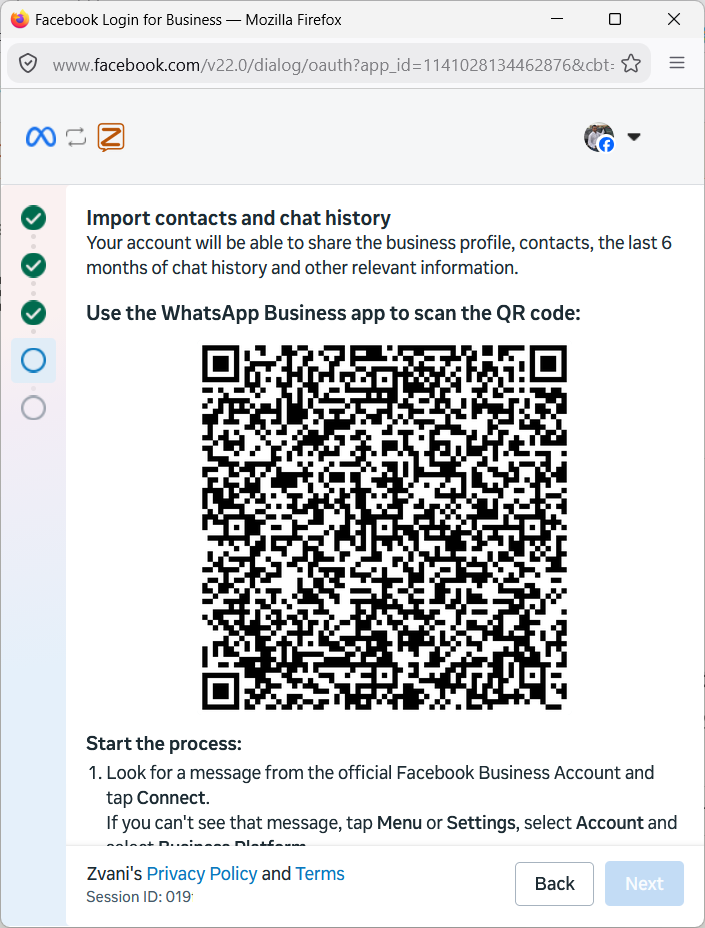
Scan the QR code
On your phoneScan the QR code shown on your computer.
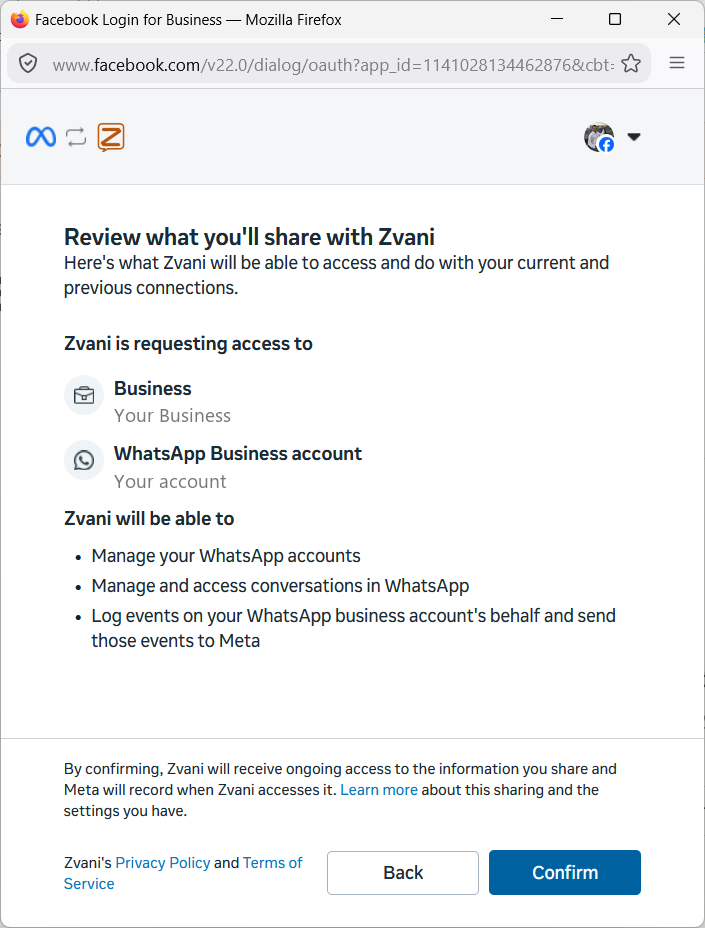
Review and confirm
Meta popupCheck what you're sharing with Zvani and click Confirm — you're linked.
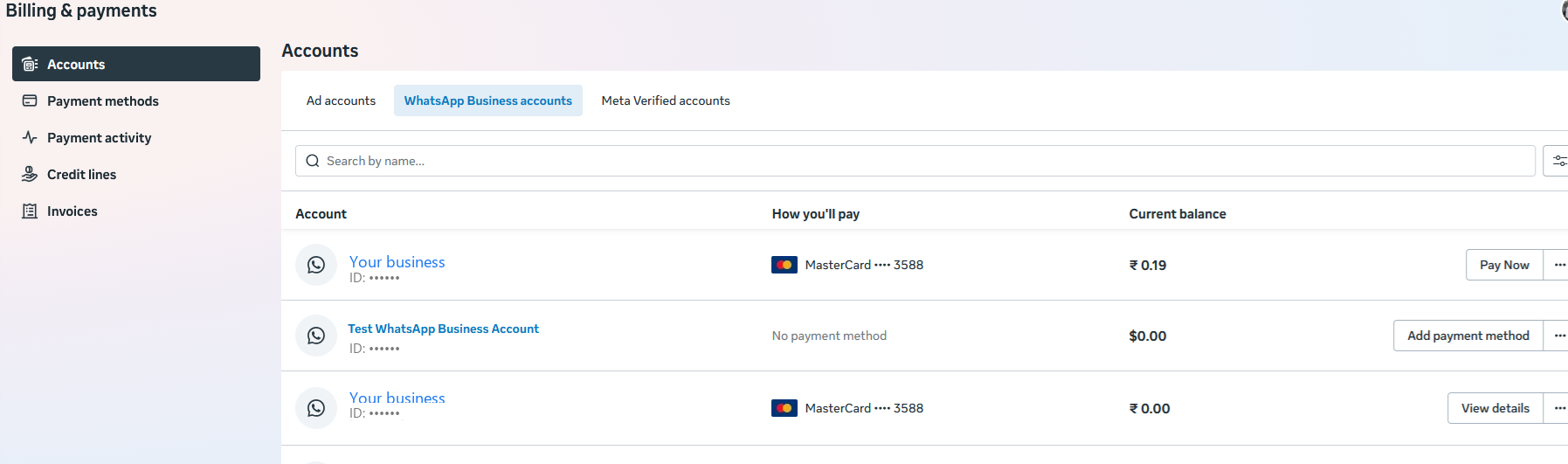
Add a payment method
Meta popupIn Meta Business, add a payment method. Without it, WhatsApp won’t deliver your messages.
Verify it's connected
In ZvaniBack in Setup → WhatsApp numbers, your number now shows as Active. You’re done.
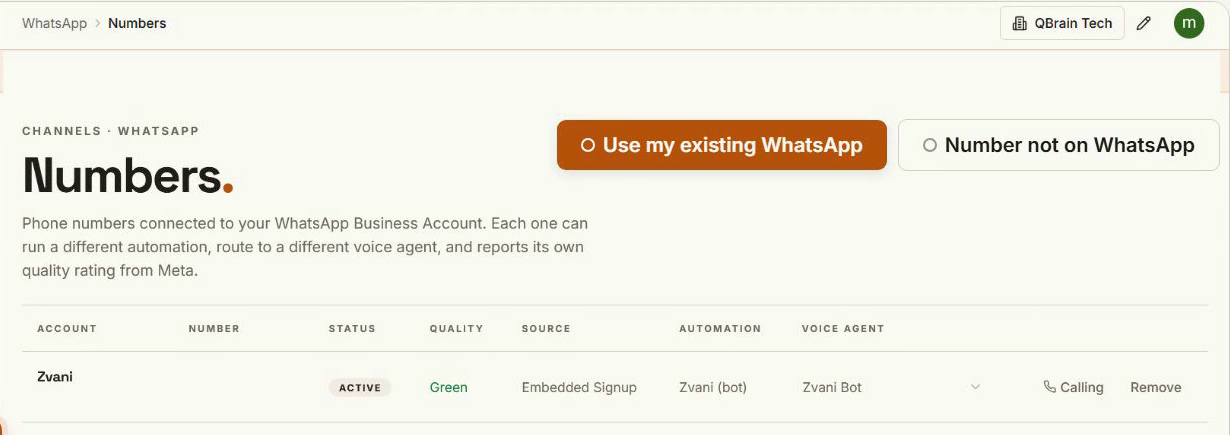
Quality and sending limits can take a little while to settle after connecting — that’s normal for a fresh link.
Stuck on a step? Ask us.
Last updated: 29 August 2026